
How to Use ChatGPT Work: A Beginner’s Guide for 2026
ChatGPT Work turns ChatGPT from a quick question-and-answer tool into an agent for longer, multi-step jobs. You can give it an outcome, provide files and context, let it research or work across approved tools, and ask it to produce a finished document, spreadsheet, presentation, report or interactive Site.
OpenAI introduced ChatGPT Work on 9 July 2026. It is designed for tasks that need planning, several stages and a usable final result—not simply a short reply. This beginner-friendly guide explains how to use ChatGPT Work, how it differs from ordinary Chat and Codex, which prompts work best, and how to stay in control of privacy, accuracy and online actions.
Quick answer: Open Work, describe the result you want, add the relevant files or connected tools, state your constraints and review criteria, then let Work plan and complete the task. Check its sources, calculations and actions before sharing or publishing the result.
Feature availability can vary by plan, device, region, rollout stage and workspace settings. Details in this guide were checked against OpenAI’s official information on 3 August 2026.
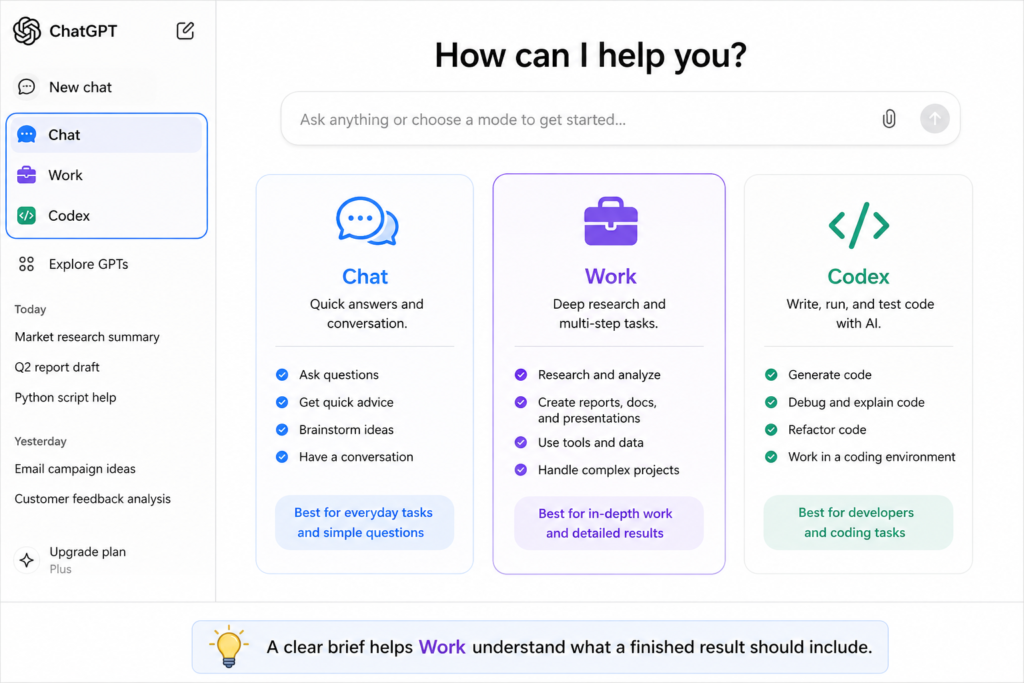
Table of contents
- What is ChatGPT Work?
- Chat, Work and Codex compared
- What ChatGPT Work can do
- How to start using ChatGPT Work
- A seven-part prompt formula
- Practical prompt examples
- Files, plugins and browsers
- Scheduled tasks and Sites
- Safety, privacy and accuracy
- Common mistakes
- Frequently asked questions
- Key takeaways
What is ChatGPT Work?
ChatGPT Work is an agent inside ChatGPT for more involved work. Instead of treating every message as an isolated question, it can gather context, plan an approach, carry out a sequence of steps and create a polished deliverable. You can follow its progress, answer questions, change direction and approve important actions as it works.
It is powered by OpenAI’s GPT-5.6 model family. OpenAI positions it as a tool for professional and everyday tasks such as analysing information, preparing reports, creating teaching resources, building forecasts, organising projects and turning scattered material into something ready to review.
The important word is outcome. In ordinary Chat, you might ask, “Can you suggest ideas for a weekly lesson plan?” In Work, you can ask, “Create a complete five-day lesson plan for a mixed-ability Year 7 class, using the attached curriculum, with objectives, starter activities, worksheets, differentiation and an assessment checklist.” Work is designed to handle the whole chain.
Who can use it?
Work is available through ChatGPT on supported desktop, web and mobile experiences, although access is still affected by plan, rollout, region and administrator controls. On web and mobile, OpenAI has been rolling Work out to eligible paid plans. On managed Business, Enterprise or Edu accounts, an administrator may control Work, browser access, plugins and other permissions.
If you do not see Work, update the ChatGPT app, check that you are signed in to the intended account and workspace, and ask your workspace administrator whether the feature is enabled. A missing option can also mean the rollout has not reached the account yet.
Chat, Work and Codex: what is the difference?
| Experience | Best for | Typical result |
|---|---|---|
| Chat | Quick questions, explanations, brainstorming and everyday conversation | An immediate answer or short draft |
| Work | Research, analysis, connected tools, multi-step projects and finished deliverables | A report, document, spreadsheet, presentation, plan or Site |
| Codex | Software development, debugging, tests, code review and repository work | Working code or a technical change |
A simple rule helps: choose Chat when you mainly need an answer, Work when you need a job completed from beginning to end, and Codex when the job is primarily about software development.
What can ChatGPT Work do?
Work can combine several abilities in one task. The exact tools available depend on your plan and settings, but common uses include:
- researching a topic and comparing sources;
- analysing uploaded files, tables and notes;
- creating or editing documents, spreadsheets, presentations and reports;
- using approved plugins to work with connected services;
- working with local files and supported desktop apps when permission is granted;
- using a built-in or cloud browser for supported website tasks;
- creating recurring or monitoring tasks;
- turning plans and data into interactive Sites;
- refining a deliverable until it matches a reference or template.
Useful examples for families, learners and teachers
- Parents: turn school dates, activity emails and family notes into a weekly plan.
- Children and teenagers: build a revision timetable from a syllabus and exam dates, with short daily goals.
- Teachers: create differentiated lessons, quizzes, marking guides and parent-friendly summaries from curriculum material.
- Beginners: convert a confusing document into a plain-English guide with examples and a checklist.
- Lifelong learners: compare sources, create a study pathway and track progress through scheduled reviews.
Remember: Work can produce a strong first version, but the user remains responsible for checking facts, safeguarding private information and approving important actions.
How to start using ChatGPT Work
On the ChatGPT desktop app
- Open the latest ChatGPT app on Windows or macOS and sign in.
- Select ChatGPT from the main switcher, then choose Work.
- Start a new task or open a Project that already contains useful context.
- Add only the files and tools needed for the job.
- Describe the outcome, constraints and review standards.
- Watch the proposed approach, answer essential questions and approve sensitive or consequential actions only after checking them.
- Review the completed result and request precise changes in the same task.
The desktop app can work with local folders and supported desktop apps when you give permission. Local files and outputs remain on the computer unless you explicitly move or share them.
On the web or mobile app
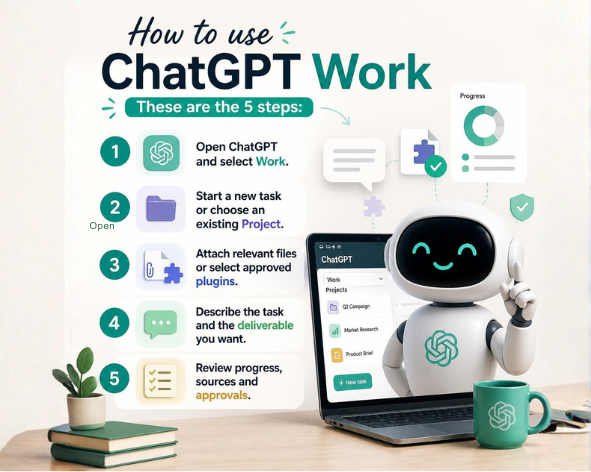
- Open ChatGPT and select Work.
- Start a new task or choose an existing Project.
- Attach relevant files or select approved plugins.
- Describe the task and the deliverable you want.
- Review progress, sources and approvals.
Cloud Work tasks can sync across supported web, mobile and desktop experiences. Web and mobile cannot directly access files stored on your computer, so upload or connect only the material needed.
The seven-part formula for a better Work prompt
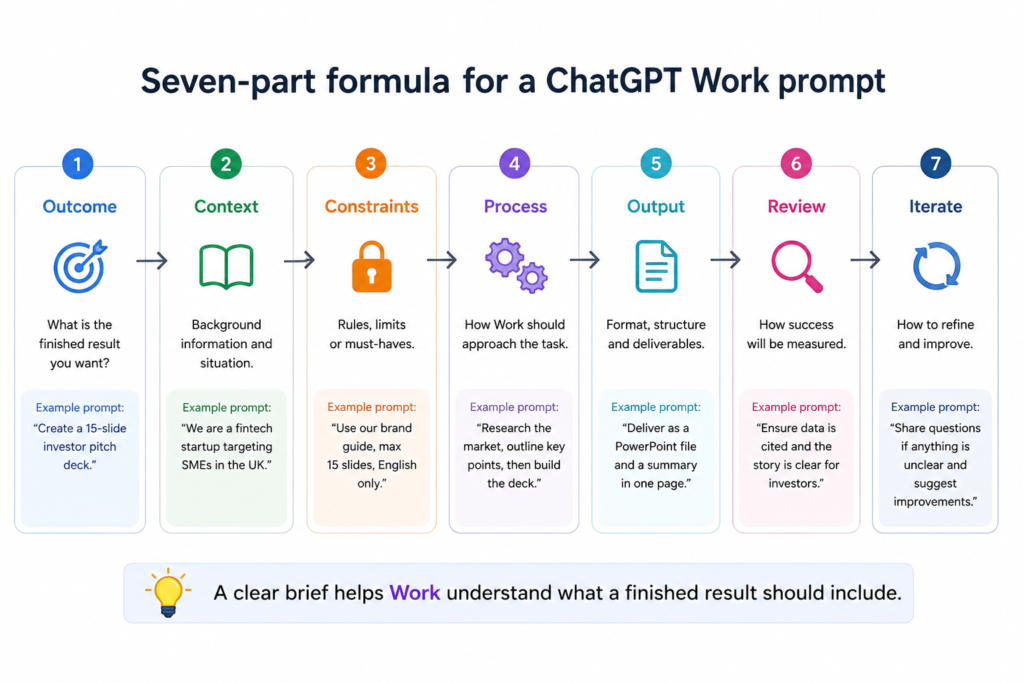
You do not need a complicated “magic prompt”. A clear brief is more useful. Include these seven parts:
- Outcome: What should exist when the task is finished?
- Purpose: Who will use it, and what decision or activity should it support?
- Context: Which files, messages, links or previous work matter?
- Constraints: State the length, date range, reading level, budget, tone or rules.
- Process: Say whether Work should research, compare, calculate, organise or use particular tools.
- Output: Name the format, structure and destination.
- Review: Explain what must be checked before the task is considered complete.
A reusable prompt template
Create [finished outcome] for [audience and purpose]. Use [files, project context or approved plugins]. Include [required sections or data]. Follow these constraints: [rules]. Work through [research, analysis or production steps]. Deliver it as [format and destination]. Before finishing, check [accuracy, sources, calculations, layout, tone and accessibility]. Ask only if a missing detail would materially change the result.
This approach tells Work what success looks like. It also reduces unnecessary back-and-forth without removing sensible safety checks.
Practical ChatGPT Work prompt examples
1. Turn notes into a polished document
Create a two-page parent information guide from the attached notes. Use friendly British English suitable for readers aged 11 and above. Include a short summary, important dates, a preparation checklist and a contact section. Keep all dates and names exactly as supplied. Deliver an editable document and check that nothing from the notes has been omitted.
2. Create a revision plan
Use the attached syllabus and exam timetable to create a six-week revision plan for a Year 10 learner. Limit weekday sessions to 40 minutes and weekend sessions to 90 minutes. Balance subjects according to exam date and difficulty, include rest days and create a printable weekly checklist. Explain the plan in simple language and flag any timetable conflict.
3. Analyse a spreadsheet
Analyse the uploaded workbook to identify monthly trends, unusual changes and the three factors most strongly associated with the total. Keep the original data unchanged. Create a summary sheet with clearly labelled charts, show the calculations used and write a one-page explanation for a non-technical reader. Check formulas and reconcile totals before finishing.
4. Research a topic responsibly
Research how screen time affects sleep in teenagers. Prioritise recent guidance from recognised health organisations and peer-reviewed research. Separate established findings from uncertain evidence, record publication dates and provide linked sources. Create a 1,200-word plain-English briefing for parents, followed by a practical evening checklist. Do not provide individual medical advice.
5. Use the browser for a supported task
Compare availability and total prices for three family activities in Manchester next Saturday between 11 am and 4 pm. Use public websites only. Do not sign in, enter personal information or make a booking. Return a table with location, age suitability, accessibility notes, cancellation terms and source links.
6. Create a recurring monitoring task
Every Monday morning, check the connected calendar and project tracker for deadlines in the next 14 days. Send a concise summary grouped into urgent, this week and later. Mention only changes or items that need action, and include a link to the original item.
7. Prepare a teaching resource
Create a 45-minute beginner lesson about rhythm for learners aged 9–11. Include learning objectives, a five-minute starter, a teacher explanation, two activities, a mini quiz, differentiation ideas and an exit ticket. Use British English and avoid specialist language unless it is explained. Suggest where a Gemrhythm worksheet or Flipbook Library resource could support practice.
Using files, templates and Projects
Work performs best when it has real, relevant context. Instead of pasting a vague request, add the source material that a capable human assistant would need. This might include a timetable, brief, workbook, policy, previous report or brand guide.
Reference file or reusable template?
- A reference file is an example for one task. Ask Work to match its layout, tone or section order while replacing the content.
- A template is intended for repeat use. It helps recurring reports, lessons or presentations remain consistent.
- A Project keeps related chats, files and instructions together, making it useful for an ongoing subject or team activity.
Be specific about what must not change. For a spreadsheet, that might be formulas, sheet names or source data. For a presentation, it might be the master design and slide order. For a learning document, it might be age level, terminology and safeguarding language.
Using plugins and connected tools
Plugins package useful workflows and can include skills, connected apps or setup templates. The Plugin Directory replaces the former App Directory, while existing app connections continue to work. OpenAI says more than 1,400 plugins are available, although what you can install or use depends on plan, region, workspace policy and the permissions of each connected app.
Use the smallest number of connections needed for a task. For example, a weekly project update may need a calendar and a project tracker, but it probably does not need access to every email folder or cloud drive.
Before connecting a plugin
- Check who provides it and read its permissions.
- Confirm which data it can read and which actions it can take.
- Use the correct account and workspace.
- Disconnect tools you no longer need.
- Ask an administrator if a required plugin is unavailable in a managed workspace.
Using the built-in browser and cloud browser
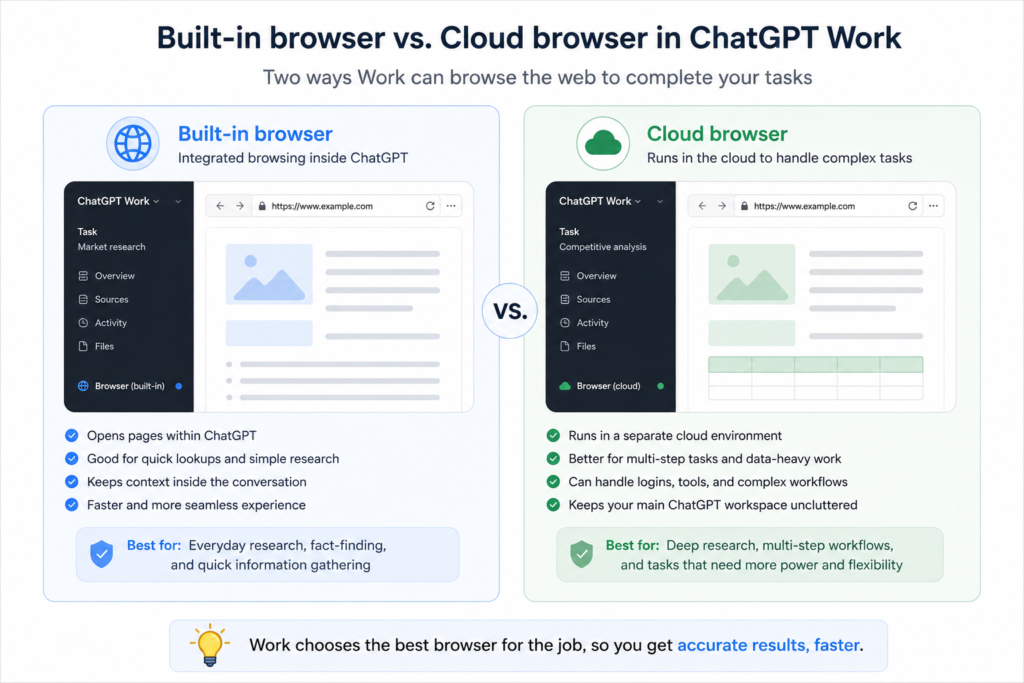
The ChatGPT desktop app includes a built-in browser. You and ChatGPT can see the same page, work across tabs and pause while you sign in. It uses its own browser state, separate from a normal Chrome profile. OpenAI advises entering credentials in the browser—not in the chat—and checking which account is active before allowing actions.
Cloud browser is different. It runs remotely for supported tasks on public websites. At launch, it cannot accept credentials, sign in, use password managers or complete payments. If a task requires those steps, it stops. The built-in browser is therefore better for a task you want to follow closely inside the desktop app, while cloud browser suits delegated work across supported public pages.
Quick Tip: Give browser tasks narrow boundaries. Say which sites may be used, what information may be entered and which actions must never be completed without you.
Scheduled tasks and monitoring
Work can run a task once, repeat it on a schedule or monitor for changes. Useful examples include weekly deadline summaries, price or stock monitoring, regular study reminders and checks for changes in connected tools.
A good scheduled task states when it runs, which sources it may check, what counts as a meaningful change and when it should stay silent. Avoid broad instructions such as “monitor everything”. They produce noise and may expose more information than necessary.
OpenAI’s current guidance says active-task limits vary by plan. Tasks cannot run more than once per hour, and unattended tasks may pause after a period of inactivity. Check the Scheduled page for the controls and limits shown on your account.
Creating documents, spreadsheets, presentations and Sites
Work can create editable documents, spreadsheets, presentations, reports and analyses. It can also work with native Google Docs, Sheets and Slides when the relevant Google Workspace connection is enabled. In the desktop app, direct control of an open Microsoft Excel workbook is handled through Codex and the ChatGPT for Excel add-in. PowerPoint is not included in that particular desktop flow at launch.
ChatGPT Sites can turn an idea, plan or dataset into an interactive website or lightweight app. Examples include dashboards, trackers, launch calendars, prototypes and reports. Sites is in public beta and has additional plan and regional restrictions; at launch it is not available in the United Kingdom, the EEA or Switzerland. Always check the current availability shown in your account before planning a project around it.
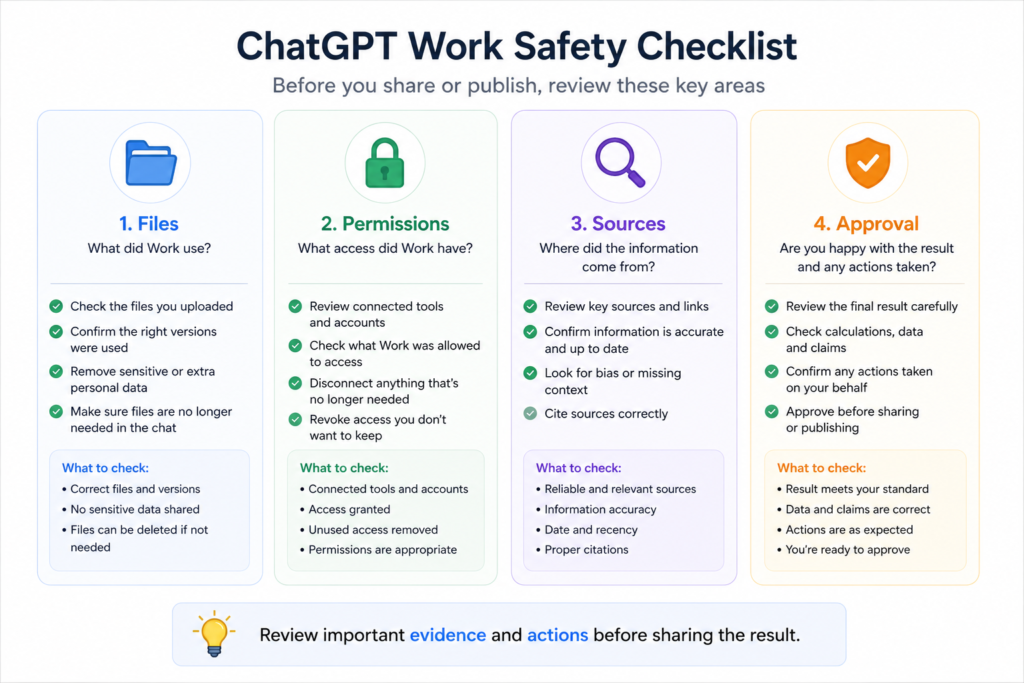
Safety, privacy and accuracy
Work can take more steps than ordinary Chat, so a careful brief matters. The goal is not to remove human oversight. It is to place review at the points where it has the greatest value.
Protect private information
- Share only the files and folders needed for the task.
- Remove passwords, payment details, confidential records and unnecessary personal data.
- Type sign-in information only into the appropriate browser page.
- Check the privacy and permission settings of plugins.
- Use workspace-approved tools for school or organisational data.
Check important outputs
- Open every cited source and confirm that it supports the claim.
- Recalculate important totals and inspect spreadsheet formulas.
- Check names, dates, quotations and contact information against the source.
- Ask a qualified professional to review medical, legal, financial or safeguarding decisions.
- Preview documents, presentations and Sites before sharing them.
Approve actions thoughtfully
Pause before allowing Work to send a message, submit a form, publish a page, change access or make another consequential change. Confirm the destination, account, audience and exact content. If the task starts moving in the wrong direction, stop it and restate the desired outcome.
Common mistakes when using ChatGPT Work
1. Giving a vague instruction
“Make a report” leaves too many decisions open. Name the purpose, audience, evidence, structure, length and review standard.
2. Attaching too much context
More information is not always better. Irrelevant files can distract the agent and increase privacy risk. Provide the smallest useful set.
3. Treating a confident answer as proof
Clear writing can still contain an error. Require sources, calculations and a final verification checklist.
4. Hiding essential rules until the end
If names, formulas, branding or word limits must remain unchanged, state this in the first prompt.
5. Using Work for a one-line question
For a quick definition or simple brainstorm, ordinary Chat is faster. Use Work when the task benefits from planning and execution.
6. Granting broad access
Connect only the tools and folders required. Review permissions and disconnect unused services.
7. Asking it to act everywhere without boundaries
“Handle my inbox and schedule” is too broad. Define the accounts, date range, actions and approval points.
8. Publishing without a human review
Always preview the final artefact. Check accessibility, citations, layout, links, audience and unintended private details.
How to improve a result without starting again
Work is designed for iteration. When the first result is close but not right, give focused feedback:
- “Keep the structure, but reduce the reading level to age 11.”
- “Show the source beside each statistic and remove unsupported claims.”
- “Do not change the formulas; improve only the chart labels and summary.”
- “Make the introduction shorter and add three classroom examples.”
- “Compare the final file against the reference and list any differences.”
Feedback is most useful when it identifies what to keep, what to change and how to judge the revision.
Continue learning with Gemrhythm
ChatGPT Work can help learners organise a coding project, explain unfamiliar terms and create a study plan. These two Gemrhythm learning kits add music, printable activities and practical challenges so children and beginners can continue learning away from the chat screen.
Python Data Types – Educational Song & Printable Activities for Kids
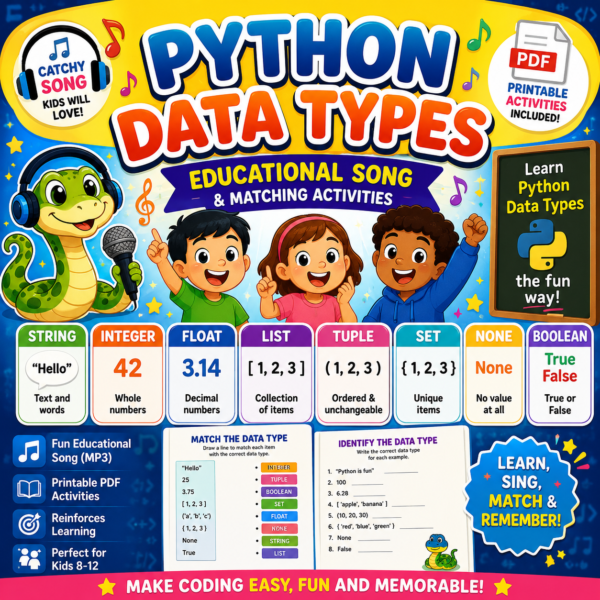
This £4.99 learning kit introduces Python data types in a memorable, beginner-friendly way. It is a useful follow-on activity for children who have used ChatGPT Work to create a coding study plan or ask for simple programming explanations.
View the Python Data Types learning kit – £4.99
Python Variables Rock! – Songs, Activities and a Coding Challenge

This £4.99 kit helps learners understand Python variables through a song, supporting activities and a practical challenge. It pairs well with the revision-plan and teaching-resource ideas in this guide.
Explore Python Variables Rock! – £4.99
Frequently asked questions
Is ChatGPT Work the same as ordinary ChatGPT?
No. It is an experience inside ChatGPT for longer, multi-step tasks and finished deliverables. Ordinary Chat remains available for quick questions and conversations.
Is ChatGPT Work the same as Codex?
No. Work is for broad research, analysis and business or everyday deliverables. Codex is focused on software development and technical repository work.
Do I need technical skills?
No. Describe the result in everyday language. A clear brief with files, constraints and review criteria matters more than specialist terminology.
Can ChatGPT Work use files on my computer?
Yes, through the desktop app when you open a local folder or Project and grant permission. Web and mobile Work cannot directly access local computer files.
Can it create Word documents, spreadsheets and presentations?
It can create or edit supported documents, spreadsheets, presentations, reports and analyses. Exact formats and direct app controls vary by surface, connection and workspace setting.
Can it browse websites?
Yes, for supported tasks. The desktop built-in browser can work with pages you can see and may pause while you sign in. Cloud browser is limited to supported public pages and cannot sign in or complete payments at launch.
Can it send emails or update connected tools?
It may be able to take actions through approved plugins, depending on permissions. Review the proposed action and destination before approving anything consequential.
Can ChatGPT Work continue when I leave?
Cloud browser tasks can continue in the background until they finish or need information or confirmation. Scheduled tasks can also run later according to their settings and plan limits.
Why can’t I see ChatGPT Work?
Your plan, region, app version, rollout stage or workspace permissions may be the reason. Update the app, check the correct workspace and ask an administrator whether Work is enabled.
Is the output always accurate?
No AI system is always accurate. Check sources, calculations, names, dates and high-stakes advice before relying on or sharing the result.
What is the best first task to try?
Choose a useful but low-risk task with clear source material, such as turning meeting notes into an action plan or creating a revision timetable from a syllabus. This makes the result easy to verify.
Key takeaways
- Use ChatGPT Work for a completed outcome, not merely a quick answer.
- Give it the relevant context, constraints, output format and review criteria.
- Choose Chat for quick help, Work for multi-step deliverables and Codex for software development.
- Connect only the files, folders and plugins the task genuinely needs.
- Set narrow boundaries for browser and scheduled tasks.
- Check sources, figures, permissions and final presentation before sharing.
- Refine the result with specific feedback instead of restarting the whole task.
Conclusion
ChatGPT Work is most useful when you treat it like a capable assistant who needs a proper brief. Give it a clear outcome, the right evidence, sensible boundaries and a definition of “finished”. It can then organise complex material, work through several stages and return something you can actually review and use.
Start with one low-risk project. Try a revision plan, a lesson resource, a family schedule or a structured report. Check the result carefully, note which instructions made the biggest difference, and reuse those instructions for your next task. Gemrhythm learners can combine this approach with suitable worksheets, learning resources and the Gemrhythm Flipbook Library to turn a finished plan into regular practice.
Official sources and further reading
- OpenAI: ChatGPT Work
- OpenAI Help: ChatGPT Work and Codex
- OpenAI Help: Using the built-in browser
- OpenAI Help: Using cloud browser
- OpenAI Help: Creating and editing files with Work
- OpenAI Help: Plugins in ChatGPT and Codex
Internal linking opportunities
- Link “Gemrhythm Flipbook Library” to the library landing page.
- Link “Tracks” to the all music collection.
- Link “Kids Learning Kits” to the main learning resources hub.
- Link “Gemrhythm” to gemrhythm.com